Unreal Engine 5.7 migration guide for Creator Kit users#
💡 This guide helps creators migrate their assets/projects from the now-deprecated Creator Kit (UE 5.5) into the new HELIX Studio (UE 5.7).
Legacy packages created in the Creator Kit and published via Creator Hub are not compatible with HELIX Game Client builds that use Unreal Engine 5.7. Those packages must be converted to HELIX Studio projects and re-published to the Vault.
Migration Steps#
Suggested steps to achieve this, using the default Creator Kit packages as an example:
Map & Addon Packages#
-
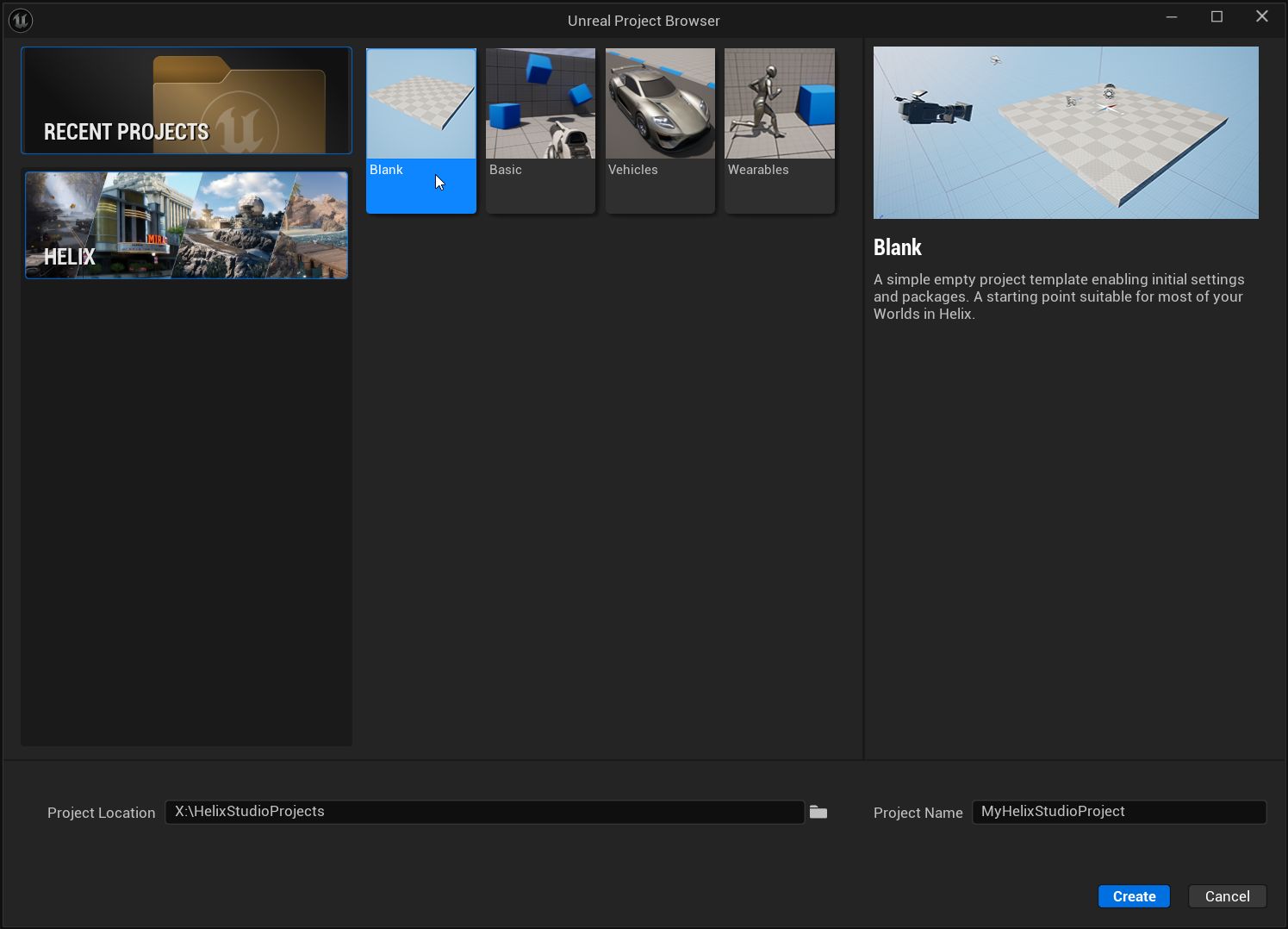
Open HELIX Studio and create a Blank HELIX Studio project:
-
Open Creator Kit using Unreal Engine 5.5 and identify the package folders to migrate (Content subfolders and/or Content Plugins):
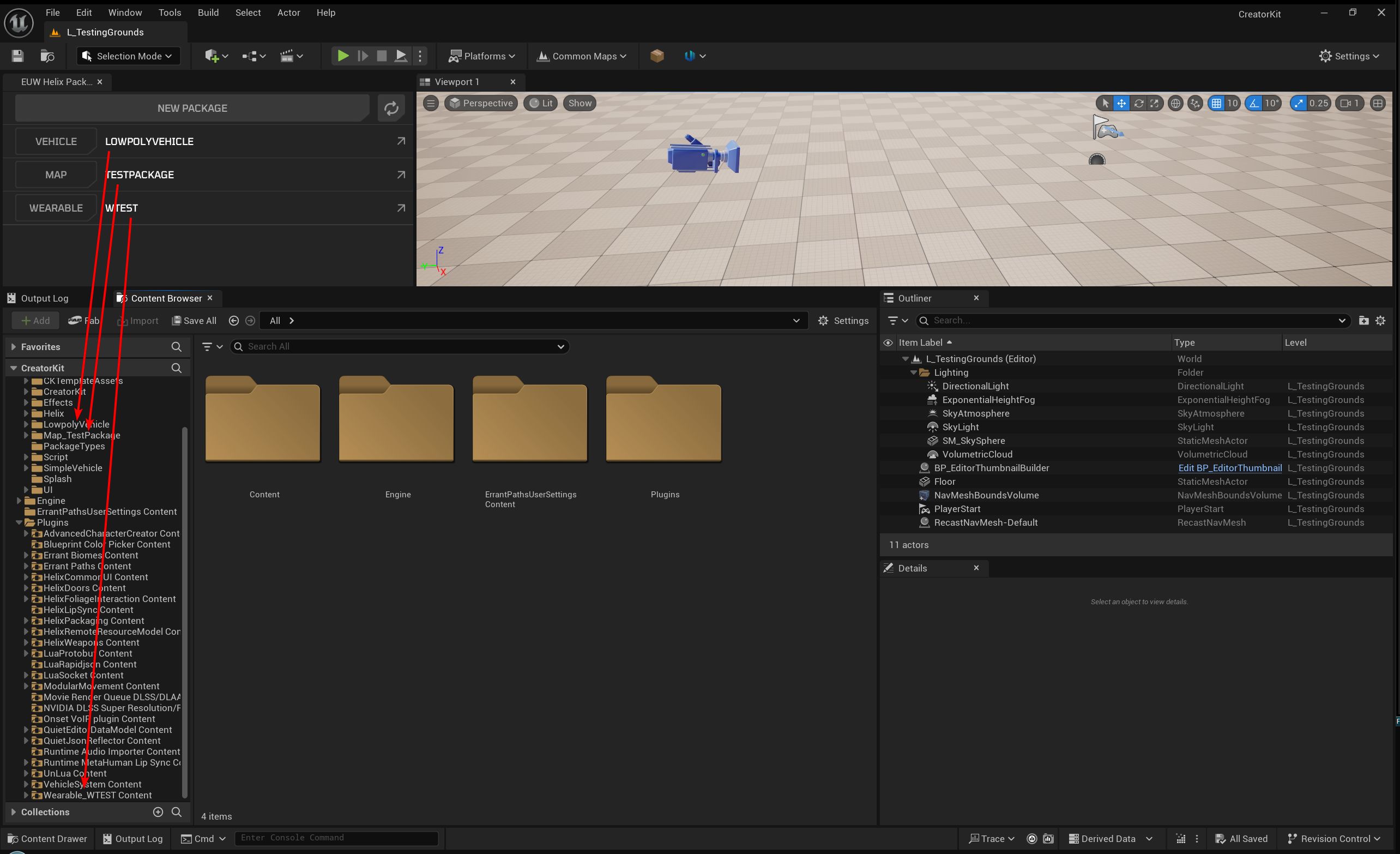
HELP! I'm struggling to find the right folders!
If you are struggling to locate the folders, click on "Open HELIX Packaging" menu at the top, access the package you need to check and click "Browse". This will show you the folder it's linked to.
-
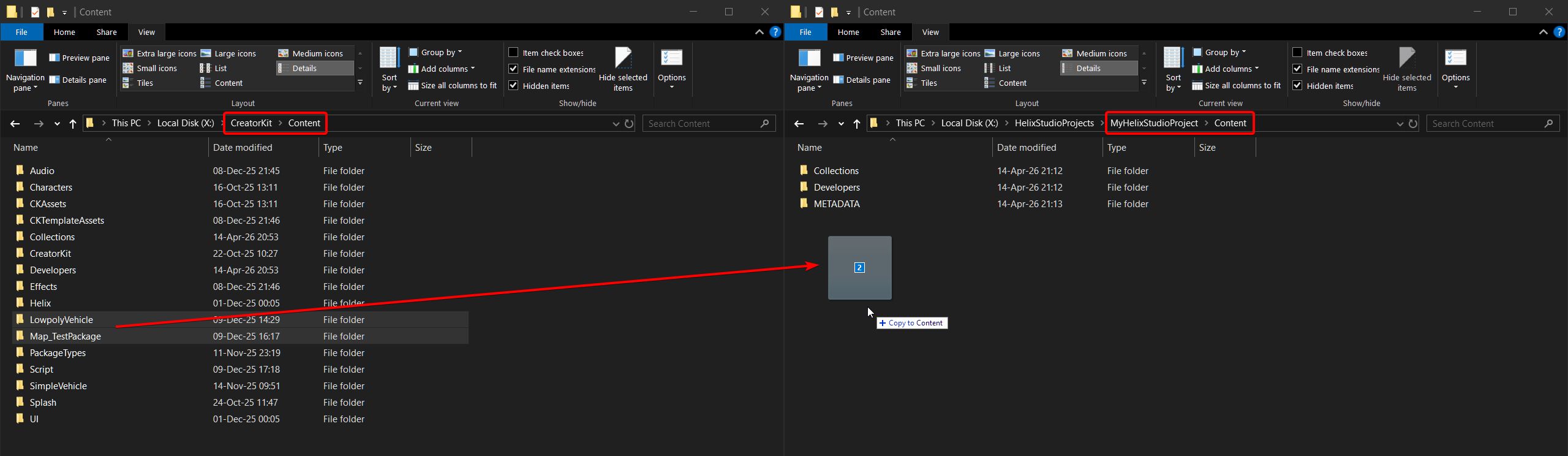
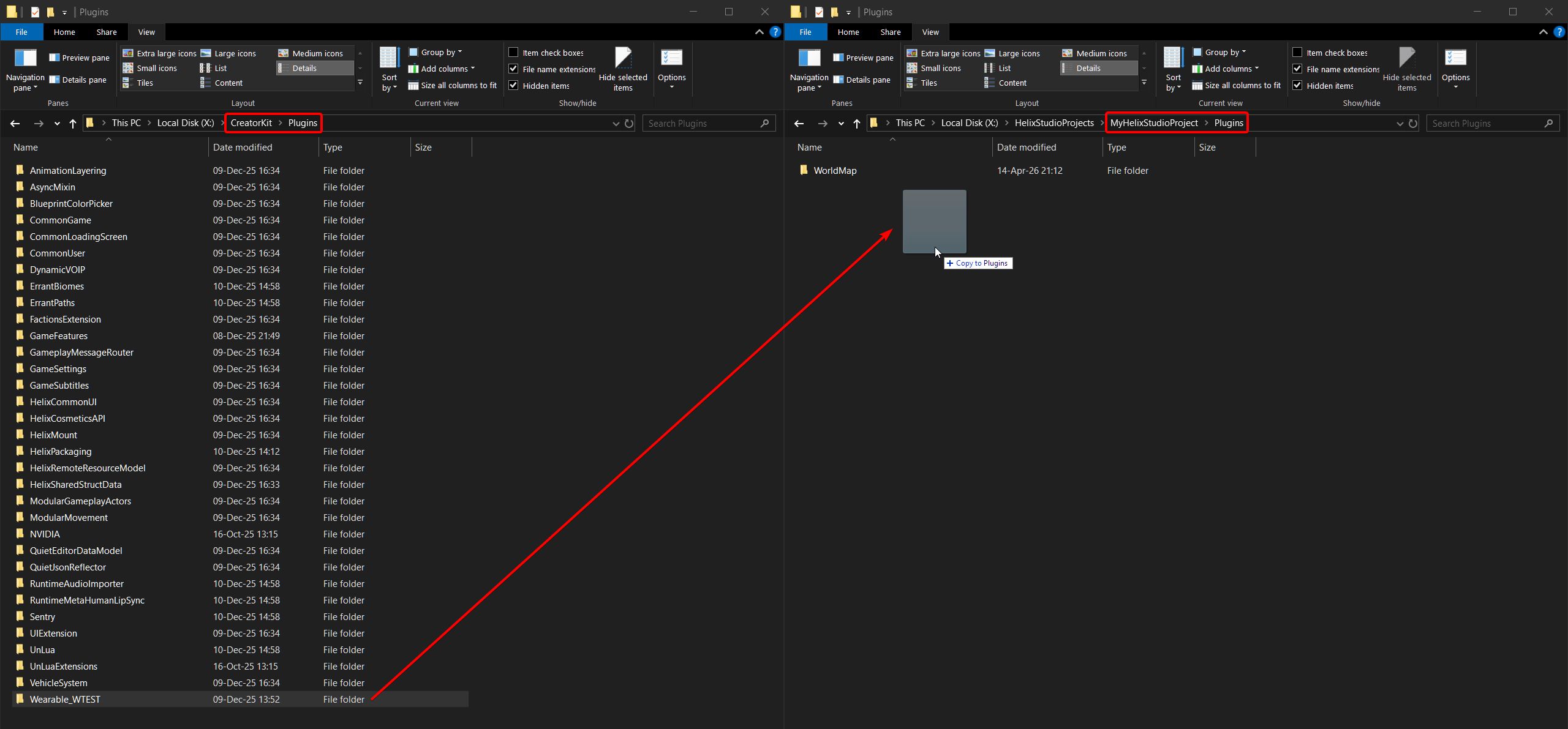
Open both the Creator Kit and HELIX Studio project folders in Windows Explorer, then copy the package folders to their corresponding places (Content Subfolders to Content, Content Plugins to Plugins):
-
Restart HELIX Studio
-
The next step is different depending on the package
-
For Map packages:
-
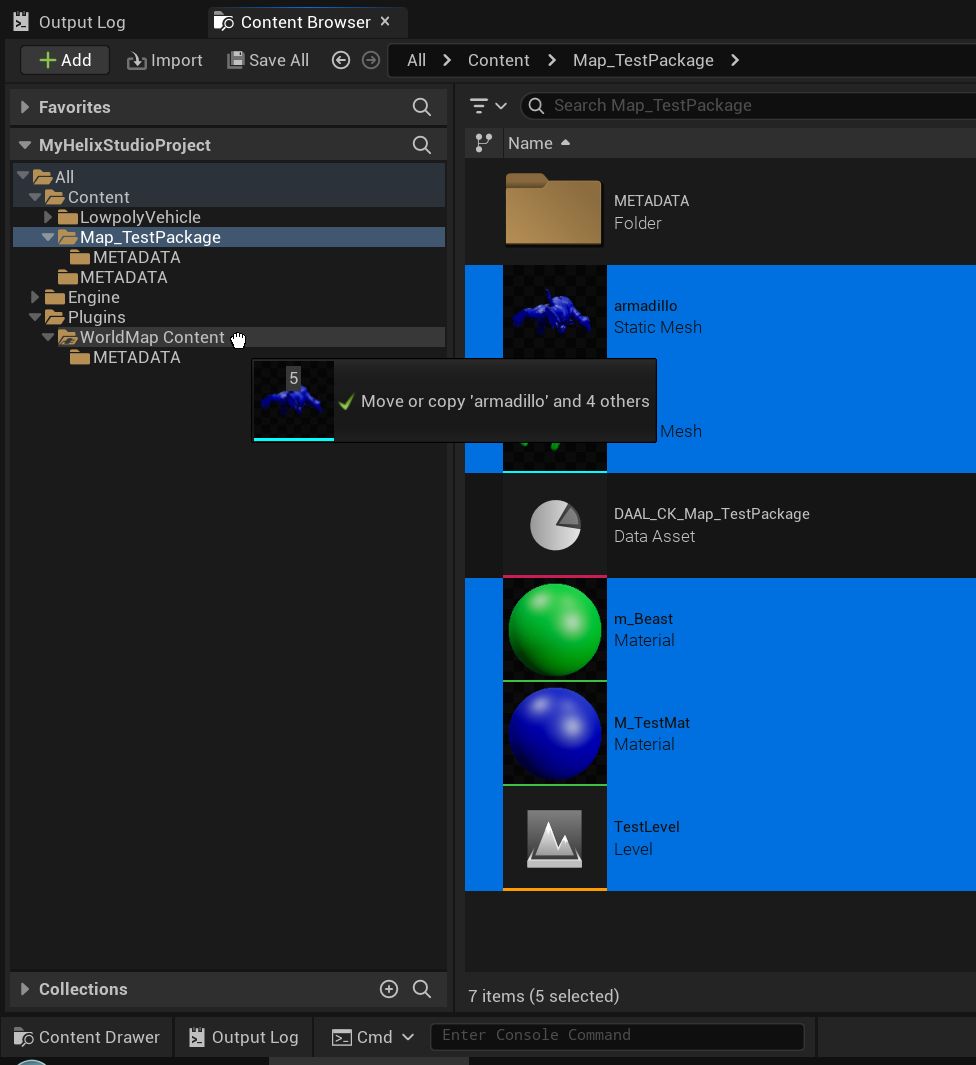
Move all assets except the METADATA folder and any DAAL_* data assets into the WorldMap Content Plugin:
-
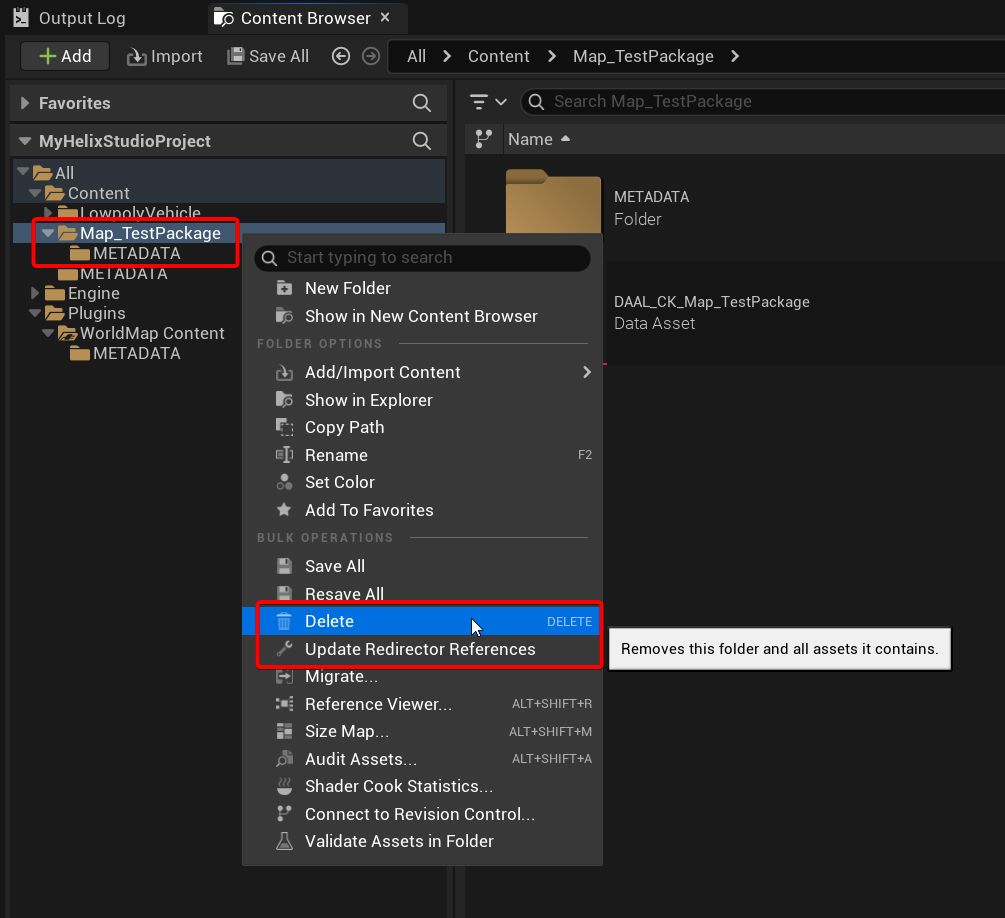
If references get broken during migration, you will need to repair them manually. After that, click Update Redirectors and then Delete the remaining folder:
-
Open the World Map package properties and set your Level asset as the Main Asset:
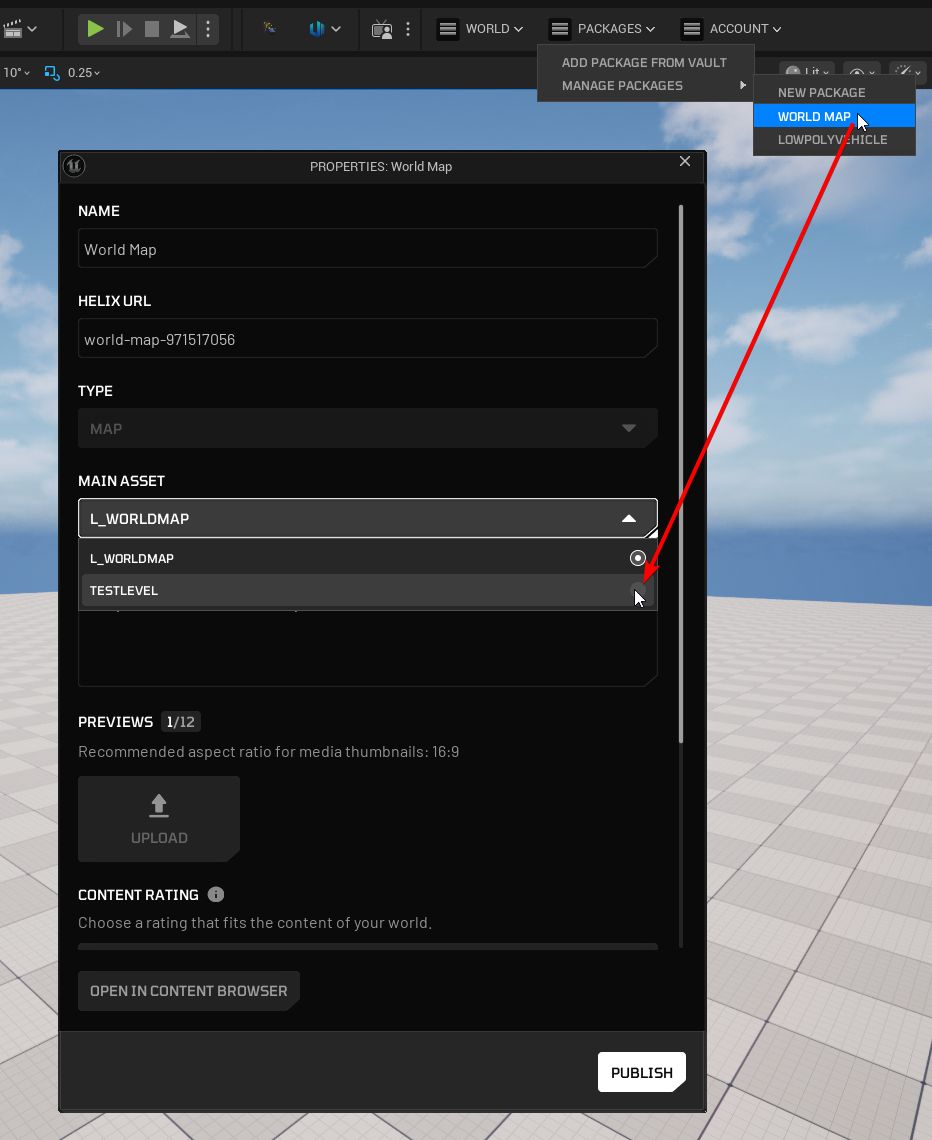
- The new level will be opened; you may now delete the default level asset (L_WorldMap)
-
-
For other packages:
- Create a new package of the corresponding package type:
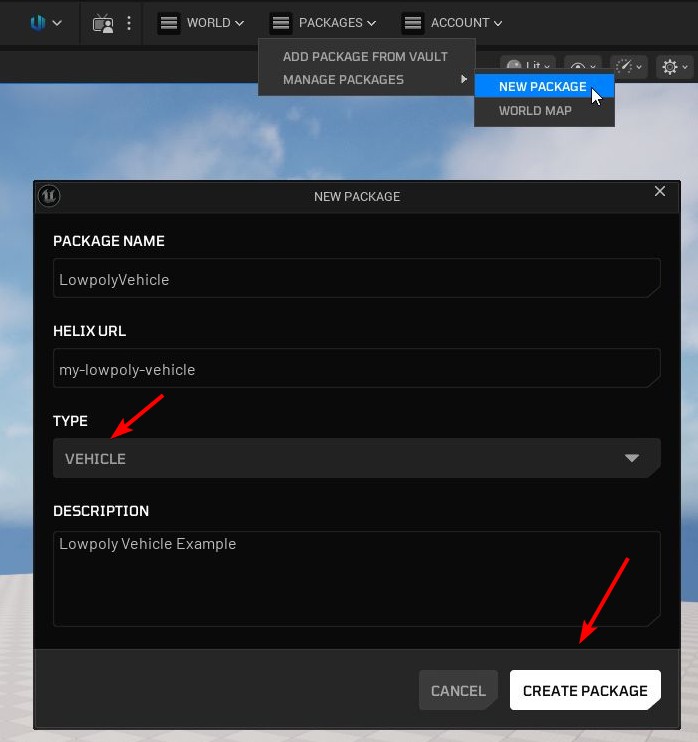
-
Move all assets except the METADATA folder and any DAAL_* data assets into the created Content Plugin:
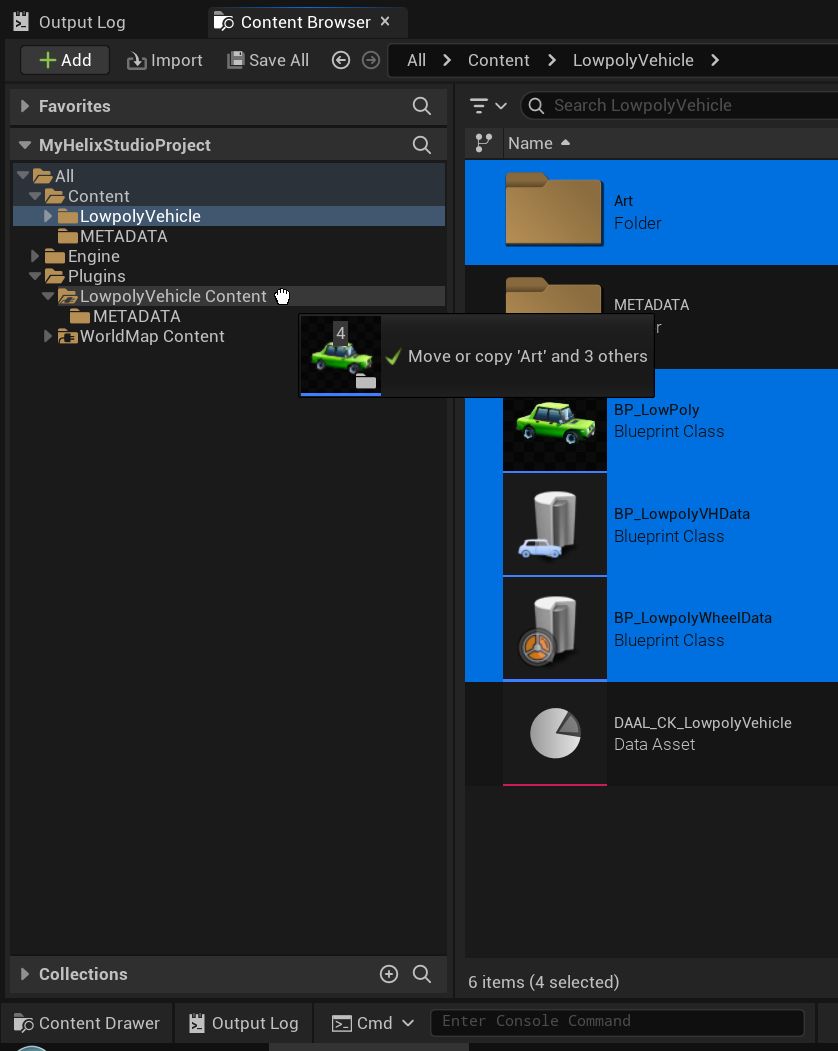
-
If references get broken during migration, you will need to repair them manually. After that, click Update Redirectors and then Delete the remaining folder:
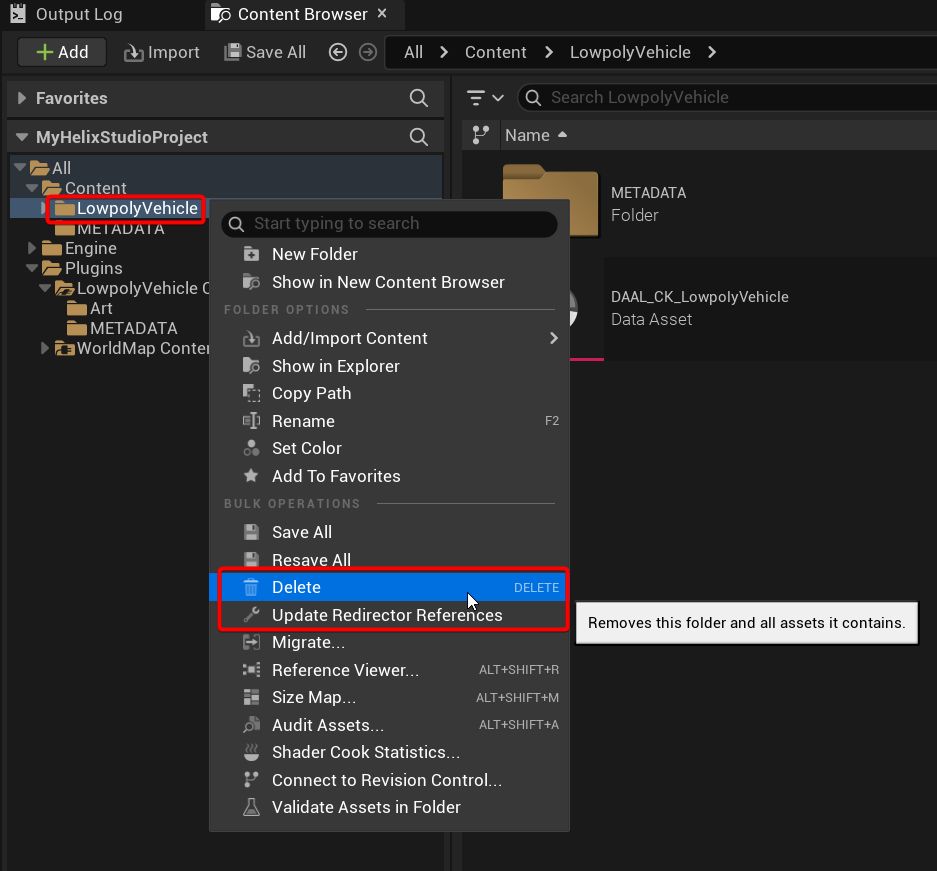
- Create a new package of the corresponding package type:
-
Including package dependencies#
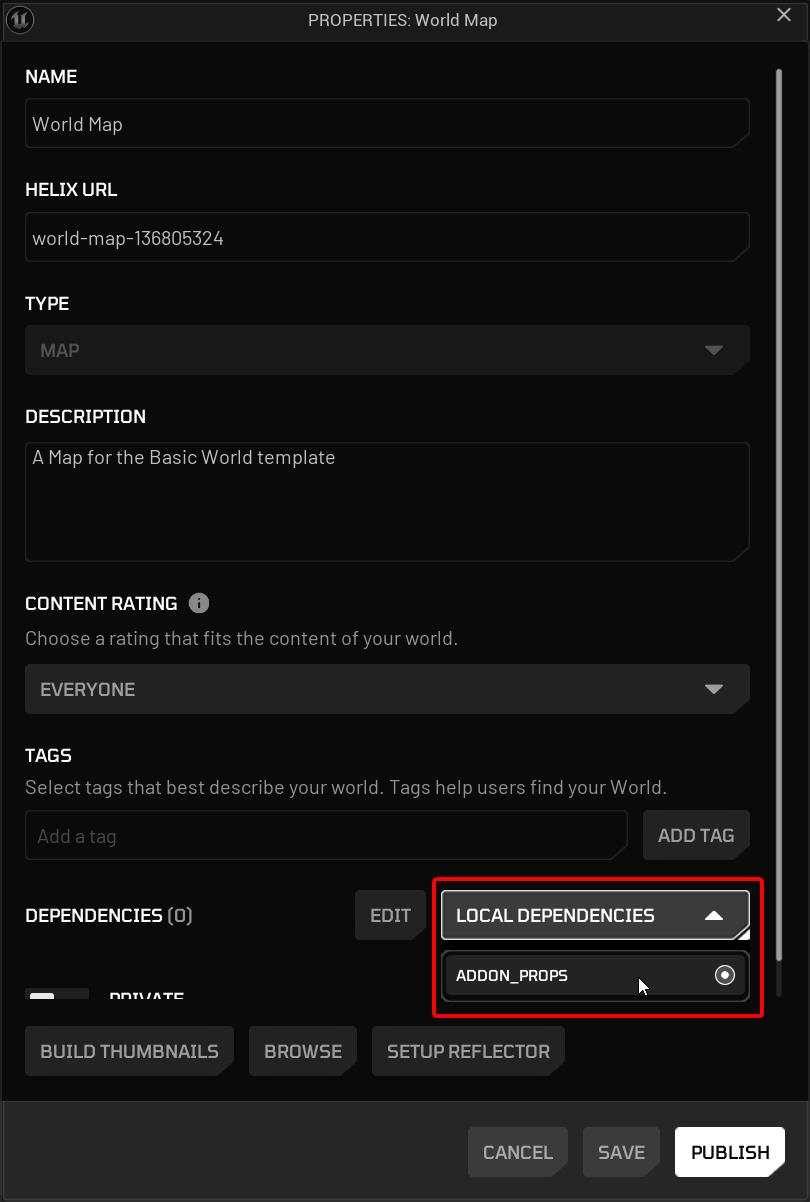
In case your package has dependencies, you need to select it in the Properties menu (please refer to this guide for details).
reveal screenshot
World & Draft Packages#
World and Draft (unpublished World) packages need to be migrated to 5.7 in a different way.
Pre-Conditions#
-
Preparing packages
If your old World or Draft has dependencies (map, addons etc), you first need to migrate them to 5.7 by following the steps above.
Note
When migrating your packages, make sure to select "PUBLISH TO VAULT" and not just "PACKAGE LOCALLY", as it is not possible to publish a World that depends on unpublished packages. If you are happy to keep your World only as a Draft (unpublished World), you can still import packages locally for testing.
-
Finding the unsupported World's local folder
💡 If your old World doesn't have scripts and you are using HELIX Studio instead of HELIX Game client for migration, you do not need to do this step.
Once you have your migrated packages ready, you need to find the location of the unsupported World that you wish to rebuild on your computer.
-
Launch the HELIX Game client and go to WORLDS.
-
Find your unsupported World, click on it, then click on BROWSE to open it in your local folder.
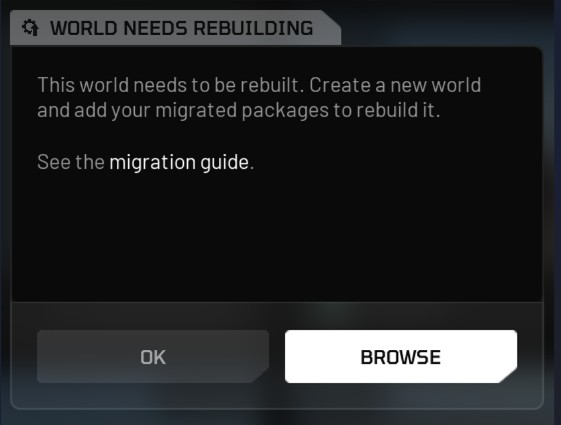
Note
If you no longer have this World locally, instead of BROWSE you will see DOWNLOAD button first, click to download it.
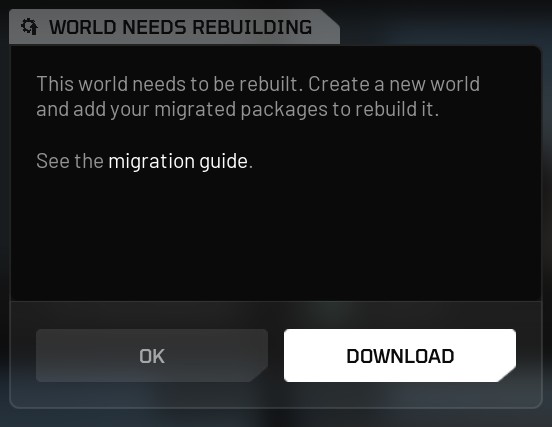
-
Keep this folder of the unsupported World open, you will need it later.
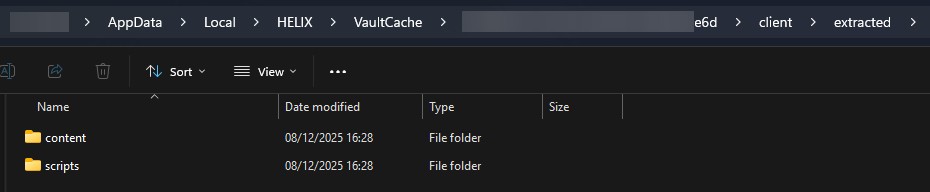
-
Rebuilding the World#
Now when you have everything you need for your new world, you need to recreate it either in HELIX Game client or in HELIX Studio.
Note
If your old World has assets that were previously spawned in Build Mode, follow the steps for the HELIX Game client (not HELIX Studio) as this will respawn all assets automatically.
Via HELIX Game Client#
-
Launch the game client.
-
From the Main Menu, go to WORLDS and click "CREATE WORLD" button. If you are using a Map package, before clicking "CONTINUE", change your map by clicking "VAULT", navigating to your Map package, and clicking "CREATE WORLD" there.
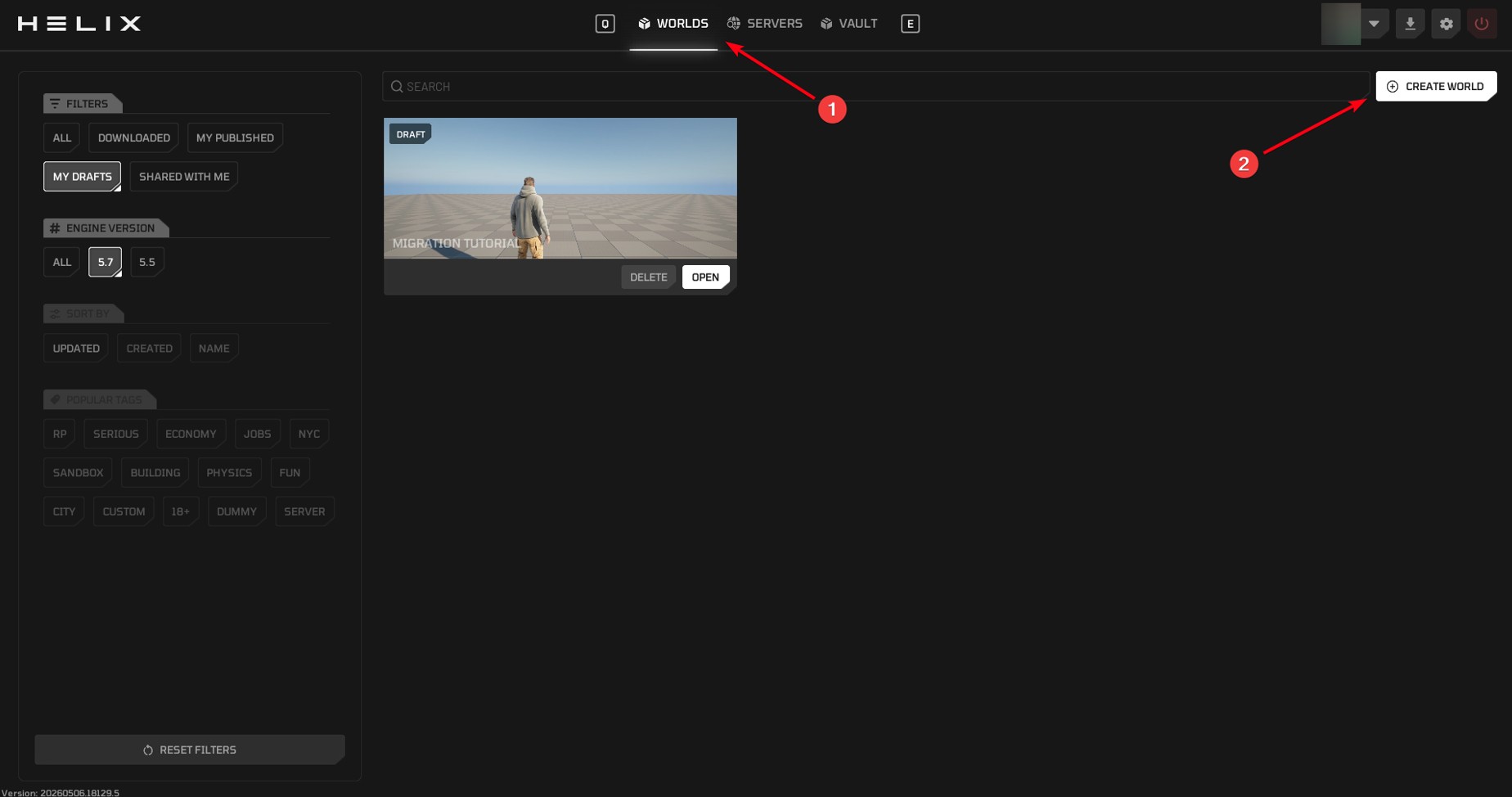
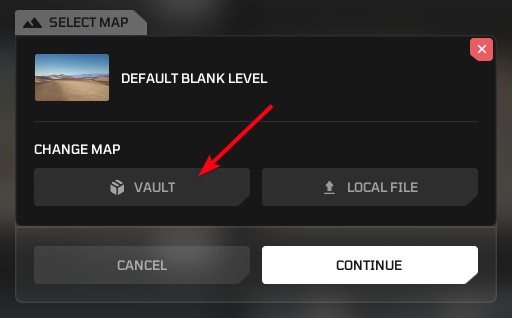
-
Press N to open Build mode, click on VAULT, find the corresponding packages and click "ADD TO WORLD".
-
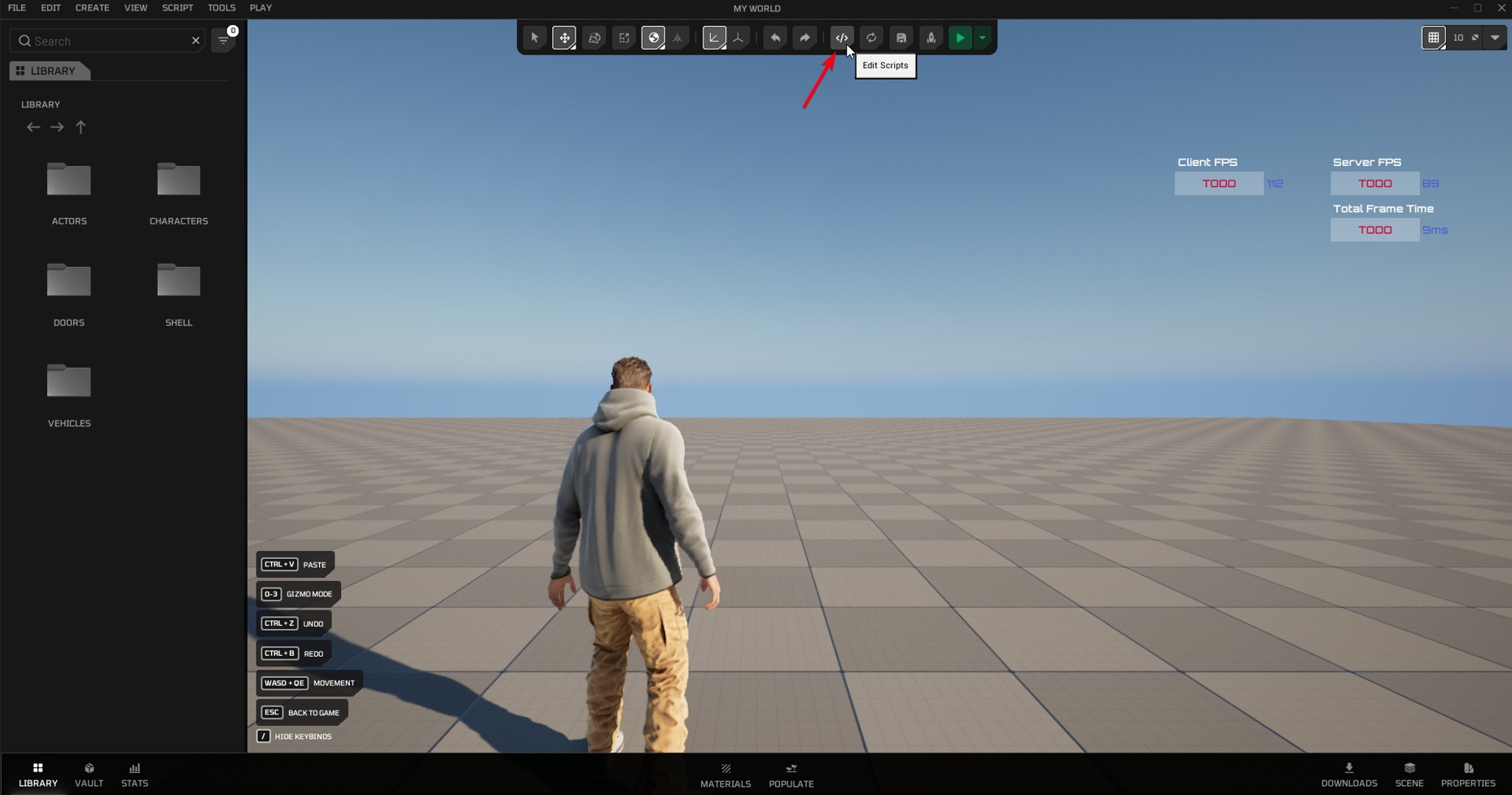
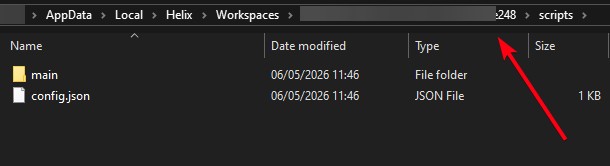
While still in Build Mode, click the "Edit Scripts" button at the top. This will save your World and open its local folder. Go up a level (to go from Scripts to the root folder of the World).
-
Exit the World (if you don't exit, your changes will be overwritten).
-
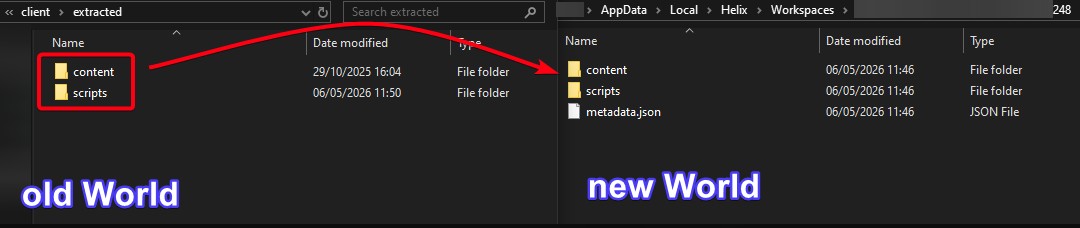
Earlier in "Pre-Conditions" Step 2, you opened a local folder of your unsupported World that you are now converting. Copy "content" and "scripts" folder from that folder over the same folders in your new World's local folder.
-
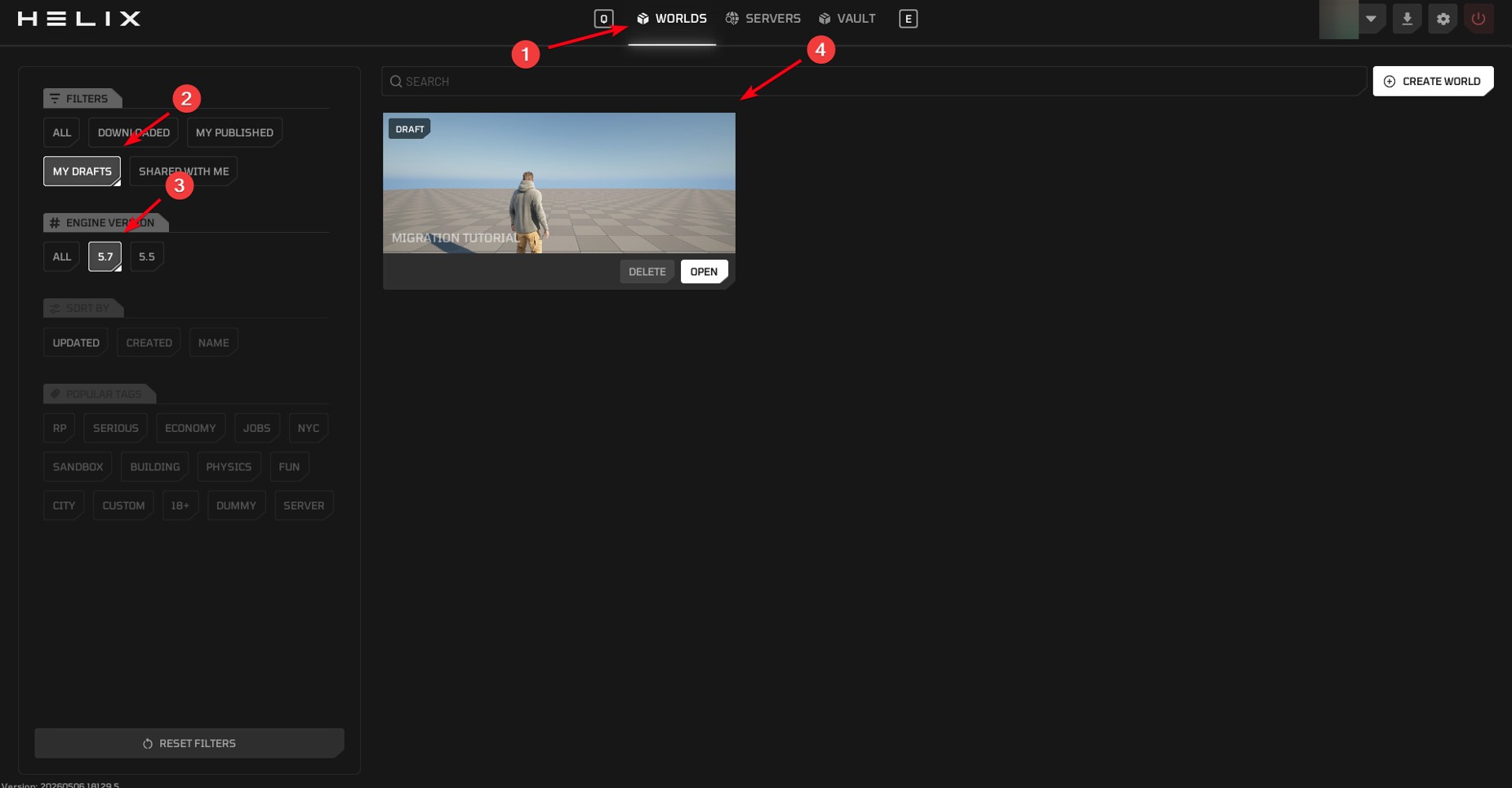
At this stage, your Draft has been migrated to 5.7 and can be played in HELIX Game client. You can find it in WORLDS -> MY DRAFTS. If you wish, you can now re-enter and publish it from inside the Build Mode as usual.
Via HELIX Studio#
-
Open HELIX Studio (it's accessible on Steam when you have access to HELIX Game client, see this guide for details).
-
Create a new Studio project (you can choose any template, for World it may be easier to start with Blank).
-
Follow this guide to add all dependencies you need for your new World, test it and publish.
-
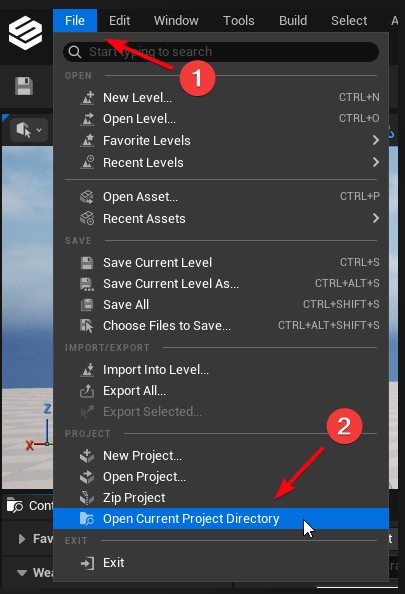
[Optional] If you need to migrate your scripts, navigate to File -> Open Current Project Directory.
-
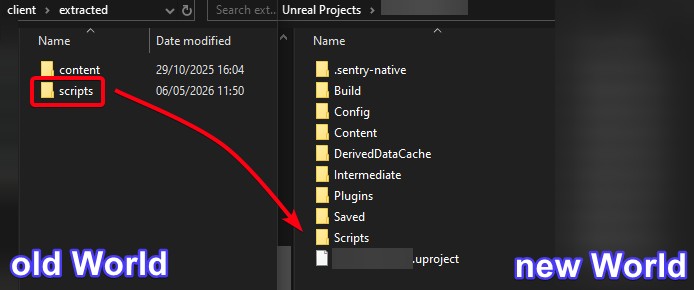
[Optional] Copy over the "scripts" folder from your old World (Step 2 in the Pre-Conditions section) into the new World's Studio Project. Do not migrate "content" folder, this folder comes from Build Mode and is not suitable for Studio projects.
-
[Optional] If your old World had assets spawned via Build Mode, you will need to redo this inside the Studio Project in Unreal Engine.
-
Save your project.
-
Proceed to the Package testing and Package publishing sections to test and publish your updated package.
-
Once the above is done, at this stage, your World has been migrated to 5.7 and can be played in game client. To find it, open HELIX Game client and go to WORLDS for published Worlds and DRAFTS for unpublished Worlds.
Package testing#
Test your migrated packages inside HELIX Studio (refer to this guide).
Package publishing#
Publish the migrated & tested packages to the Vault following the HELIX Studio User Guide.